Tutorial 6: Advanced Rendering#
Objective: Learn how to use different rendering techniques for varying quality/performance trade-offs.
What you’ll learn:
Rasterization vs Ray Tracing vs Path Tracing
Configuring render modes in MetaSim
When to use each rendering technique
Prerequisites: Completed Tutorial 5: Hybrid Simulation
Estimated time: 20 minutes
MetaSim supports multiple rendering techniques through Isaac Sim’s rendering backend. Choose based on your quality vs performance requirements.
Technique |
|
Quality |
Speed |
Use Case |
|---|---|---|---|---|
Rasterization |
|
Good |
Fast |
Training, real-time |
Ray Tracing (RTX Real-Time, legacy) |
|
Great |
Medium |
Validation, demos |
Real-Time Path Tracing (RTX Real-Time 2.0) |
|
Great |
Medium |
Interactive path-traced rendering (recent Isaac Sim) |
Path Tracing (RTX Interactive) |
|
Best |
Slow |
Final renders, sim2real |
realtime_pathtracingselects Isaac Sim’s “RTX - Real-Time 2.0” renderer (/rtx/rendermode=RealTimePathTracing). The renderer must be registered at Kit boot — it only joins the render-mode list when/rtx-transient/rt2Enabledis on (derived at startup from the persistent preference/persistent/rtx/modes/rt2/enabled); without registration every/rtx/rendermodewrite is silently refused. MetaSim injects the registration flags into Kit’s boot argv when it launches the SimulationApp itself, engages the mode, and verifies via readback (once registered, the mode also switches in/out at runtime). If you hand the handler an already-runningsimulation_app, launch it with--/persistent/rtx/modes/rt2/enabled=true --/rtx-transient/rt2Enabled=trueyourself. On builds without RTX Real-Time 2.0 MetaSim raises an explicit error so you can fall back toraytracingorpathtracing.
Running the Tutorial#
python get_started/6_advanced_rendering.py --render.mode=[rasterization|raytracing|pathtracing|realtime_pathtracing]
you can also render in the headless mode by adding --headless flag. By using this, there will be no window popping up and the rendering will also be faster.
By running the above command, you will simulate a hybrid system and it will automatically record a video. Here we demonstrate how to use one simulator for physics simulation and another simulator for rendering.
Examples#
Ray Tracing#
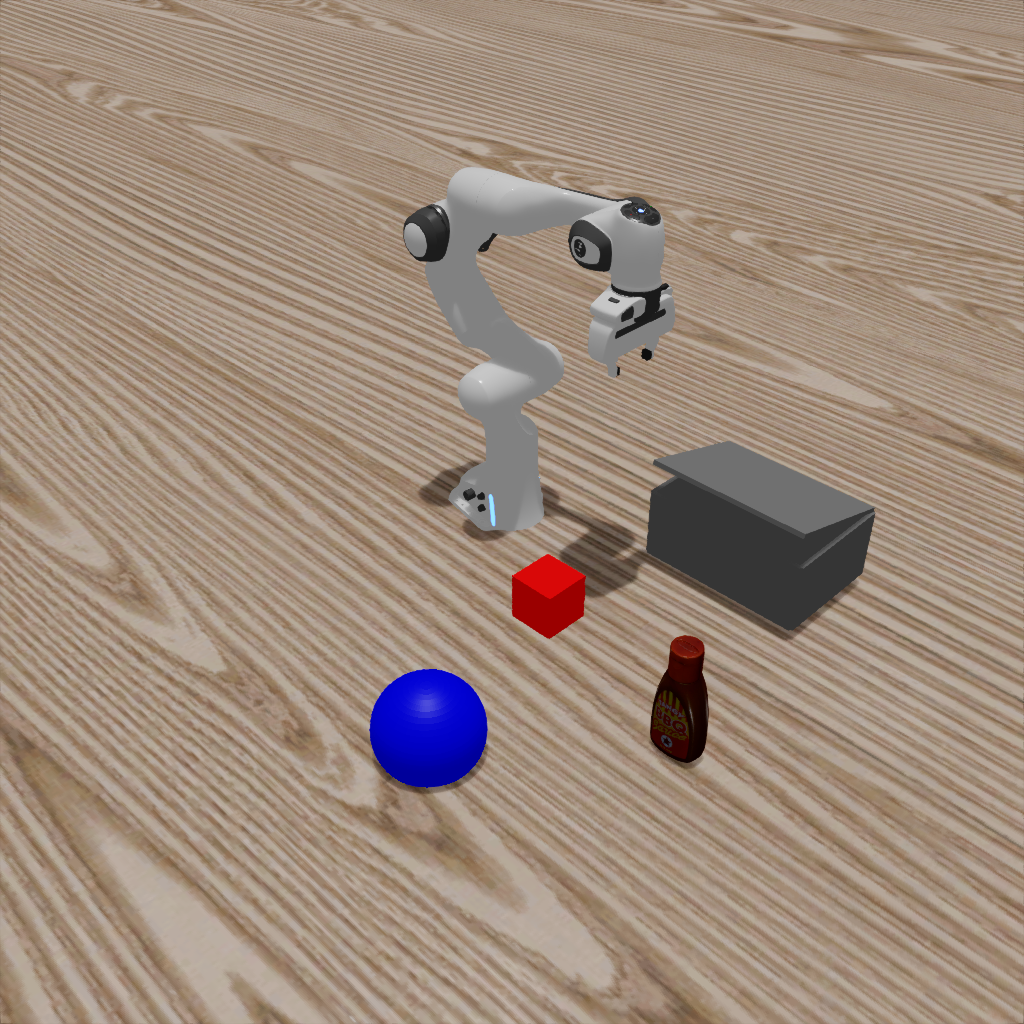
python get_started/6_advanced_rendering.py --render.mode=raytracing
Path Tracing#
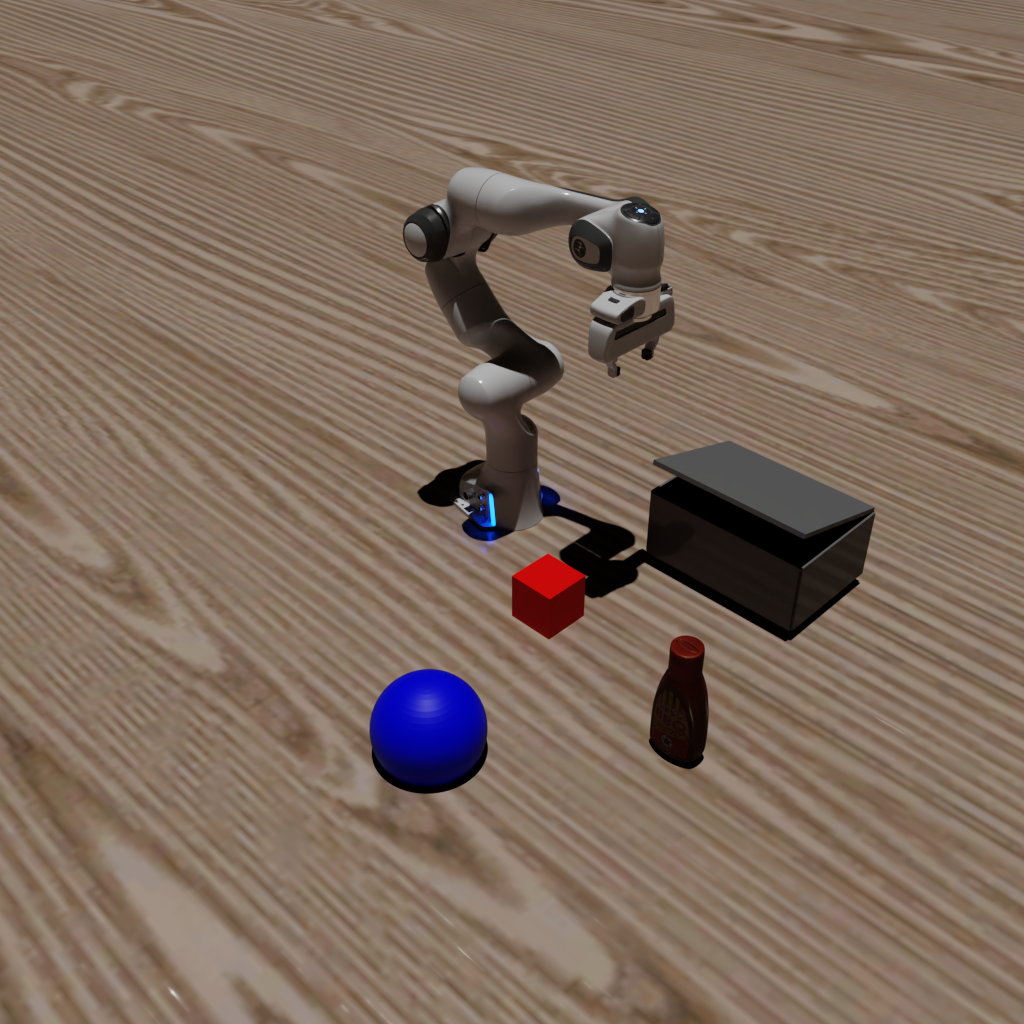
python get_started/6_advanced_rendering.py --render.mode=pathtracing
You will get the following images:#
Ray Tracing |
Path Tracing |
|---|---|
|
|